Setup Your TP-Link G Router: A Step-by-Step Guide
If you're looking to upgrade your home network with a reliable and fast Wi-Fi router, the TP-Link G router is an excellent choice. However, setting it up can be a daunting task, especially for those who are not tech-savvy. In this article, we'll walk you through the setup process of your TP-Link G router, ensuring that you have a seamless and secure internet experience.
Step 1: Unbox and Connect the Router
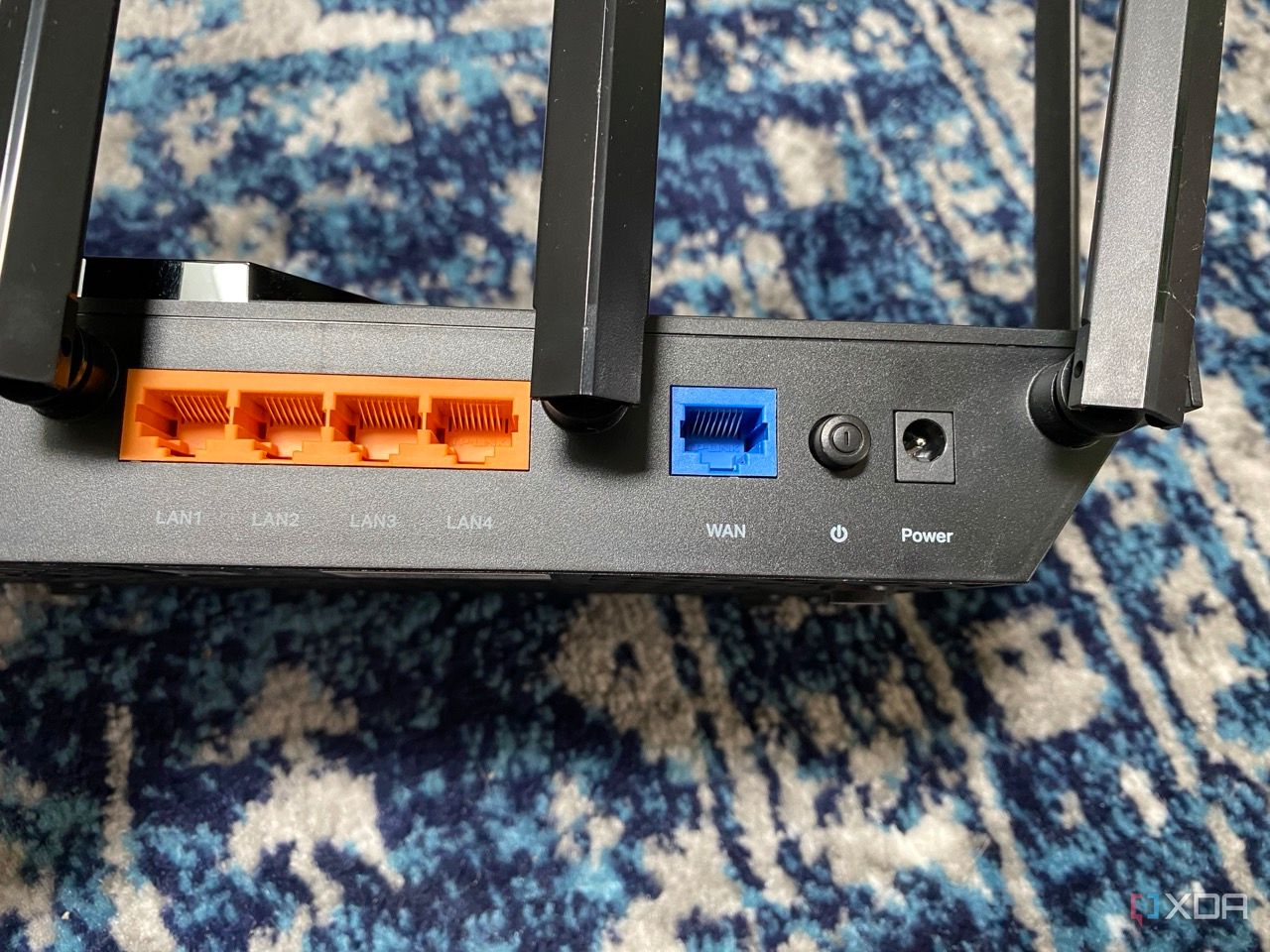
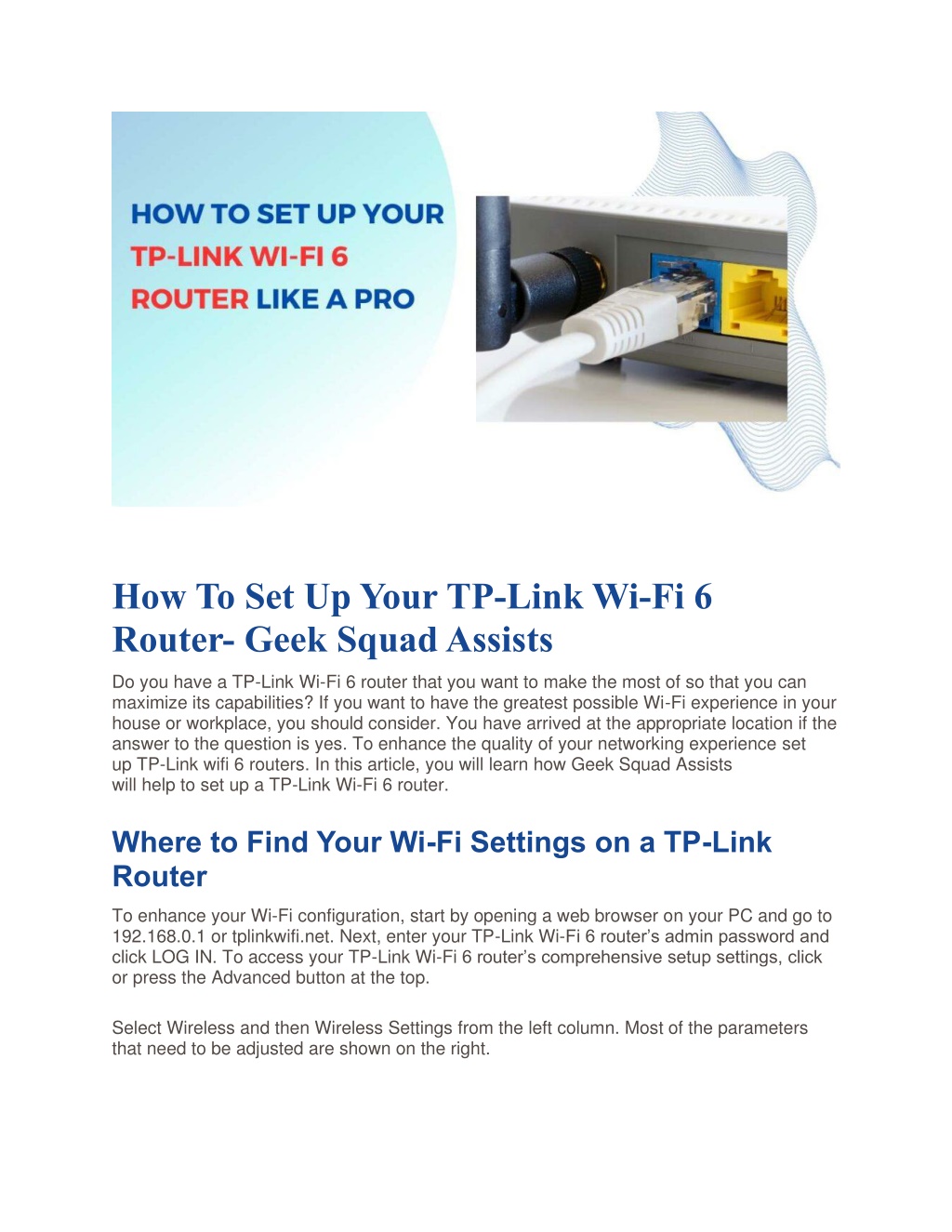
Begin by carefully unboxing your TP-Link G router and all the included accessories. Next, connect the power cord to the router and plug it into a power outlet. Make sure the router is placed in a central location to ensure optimal coverage throughout your home or office.
Step 2: Access the Router's Web Interface

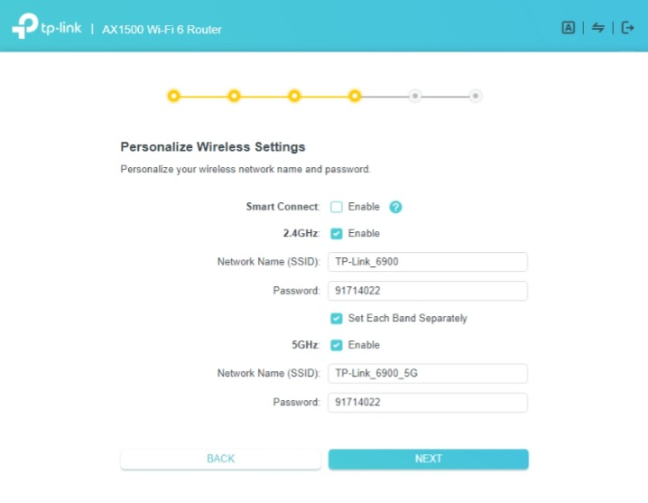
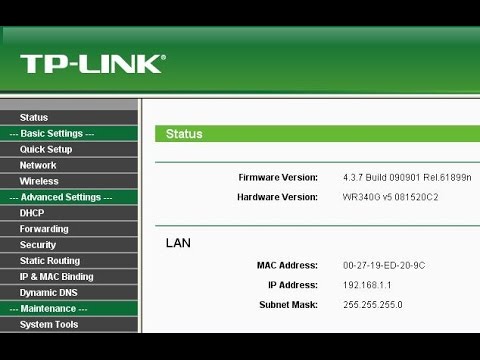
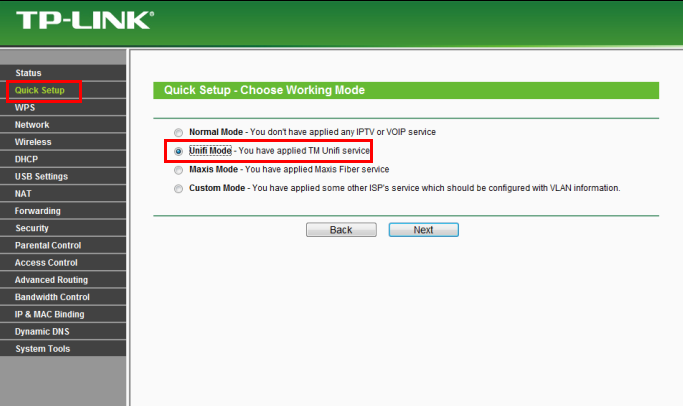
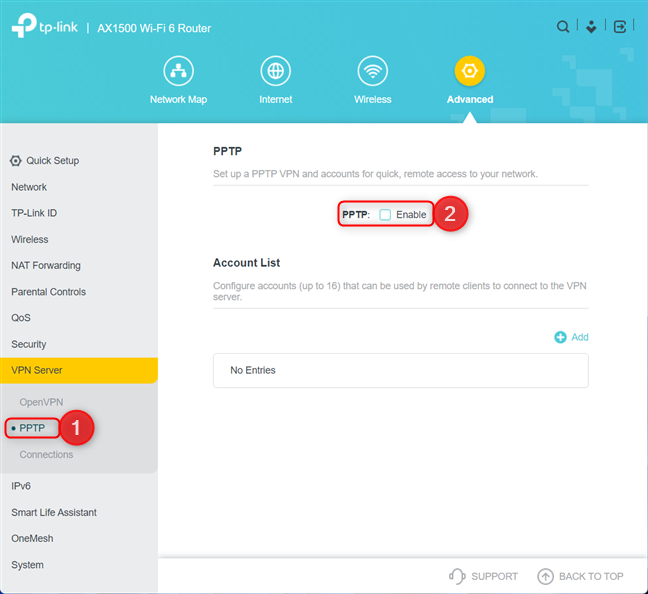
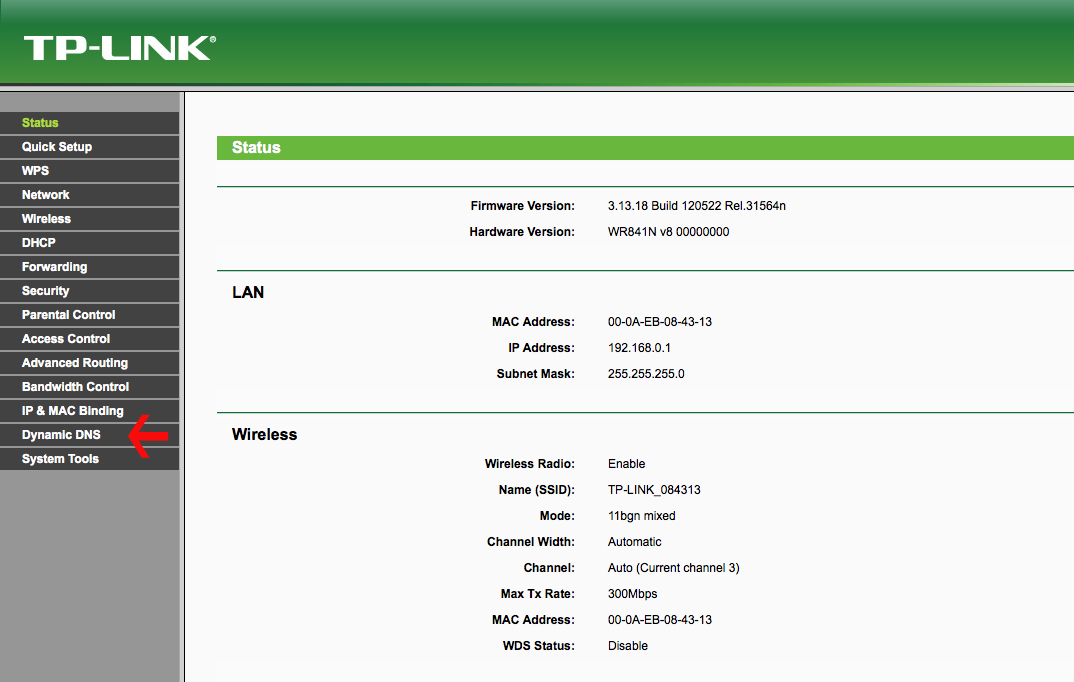
Open a web browser on your computer or mobile device and navigate to tplinkwifi.net. This will take you to the TP-Link router's web interface, where you can configure your network settings. If you're prompted to enter a username and password, use the default credentials provided in the router's documentation or on the underside of the router itself.
Step 3: Change the Default Administrator Password
As soon as you log in to the router's web interface, change the default administrator password to a strong and unique one. This will enhance the security of your network and prevent unauthorized access.