Setting Up G Router for Home Wi-Fi Network: A Comprehensive Guide
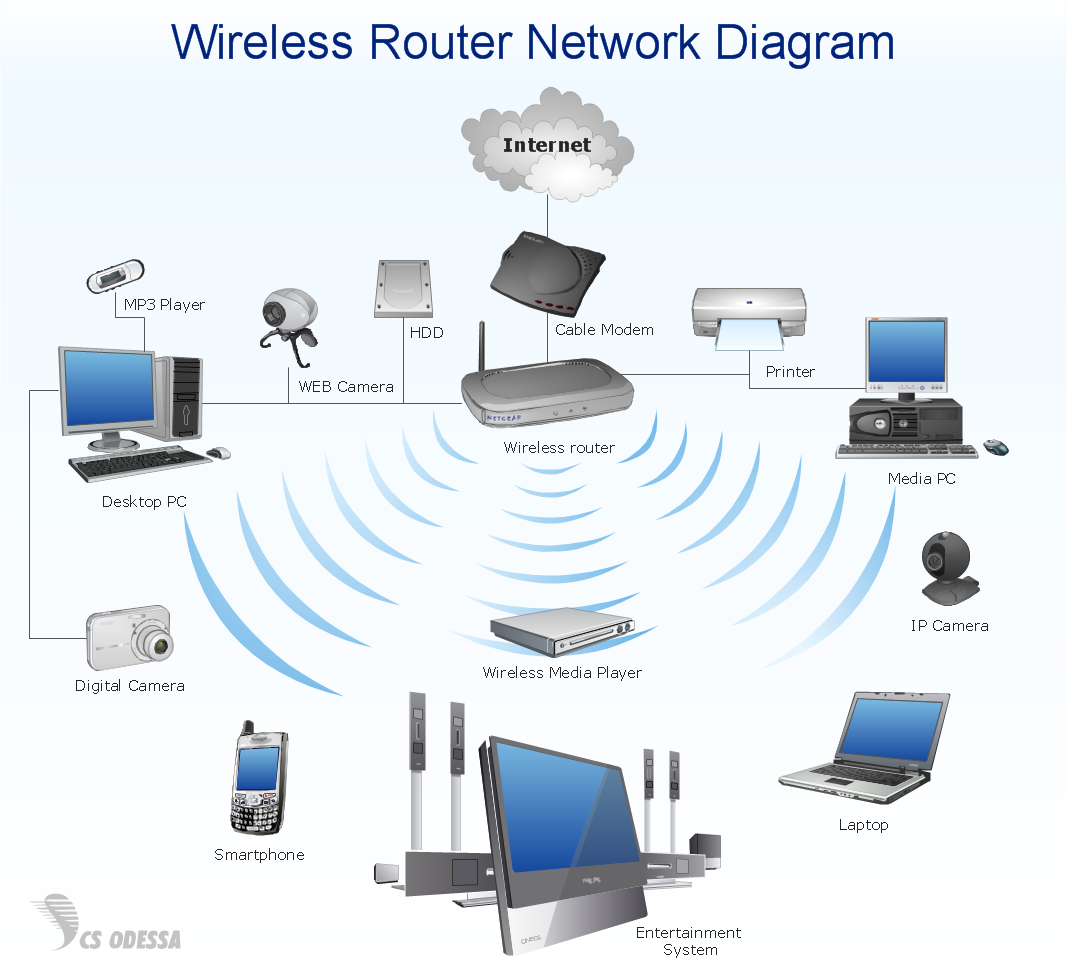
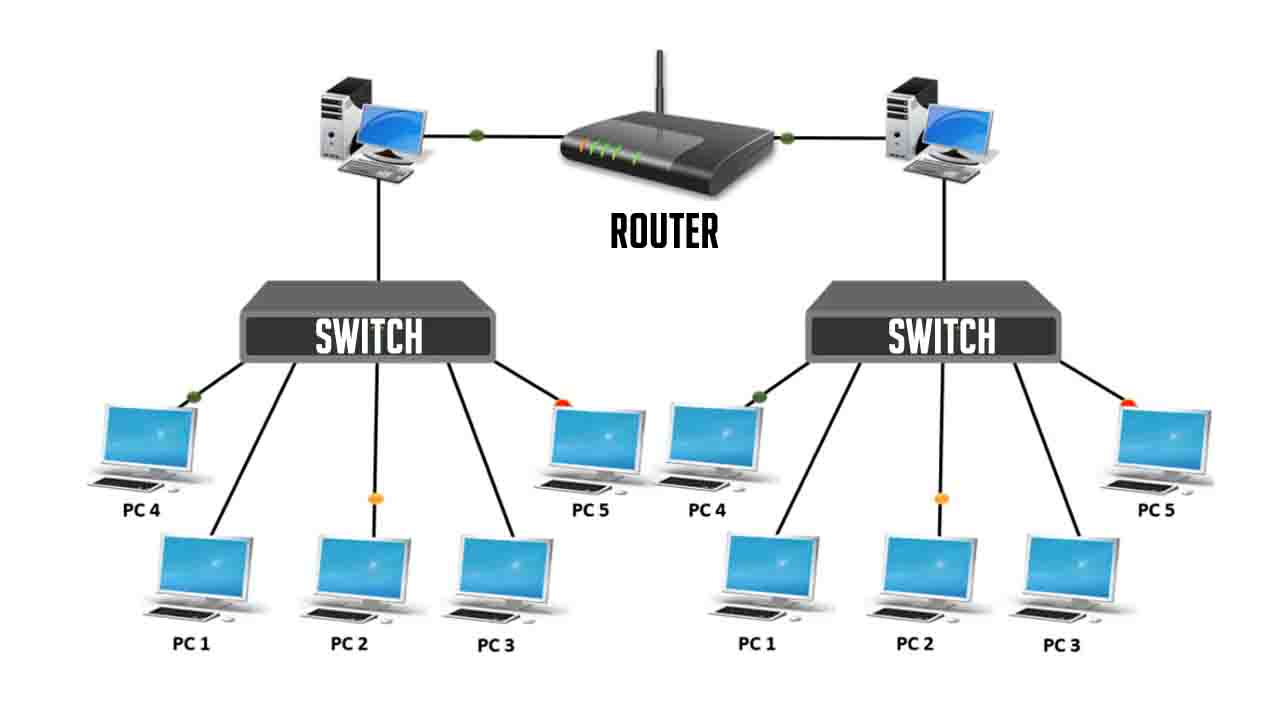
Are you looking to set up a reliable and efficient Wi-Fi network at home? A good Wi-Fi router is essential for providing seamless internet connectivity to all your devices. In this article, we'll take you through the process of setting up a G router for your home Wi-Fi network.
Choosing the Right G Router
Before we dive into the setup process, it's essential to choose the right G router for your needs. Look for a router that supports your internet service provider's (ISP) recommended speed, and ensure it has at least two Ethernet ports for wired devices. Consider a dual-band or tri-band router to accommodate multiple devices and minimize interference.

Setting Up Your G Router
Follow these steps to set up your G router:
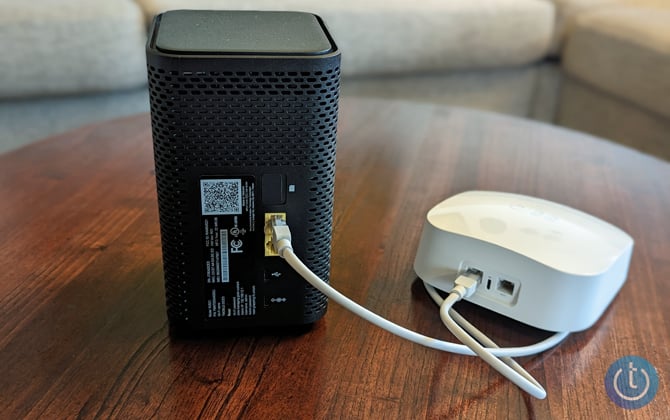
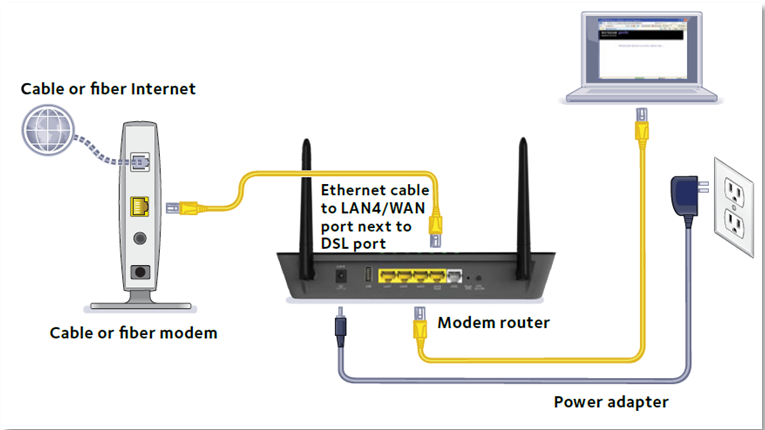
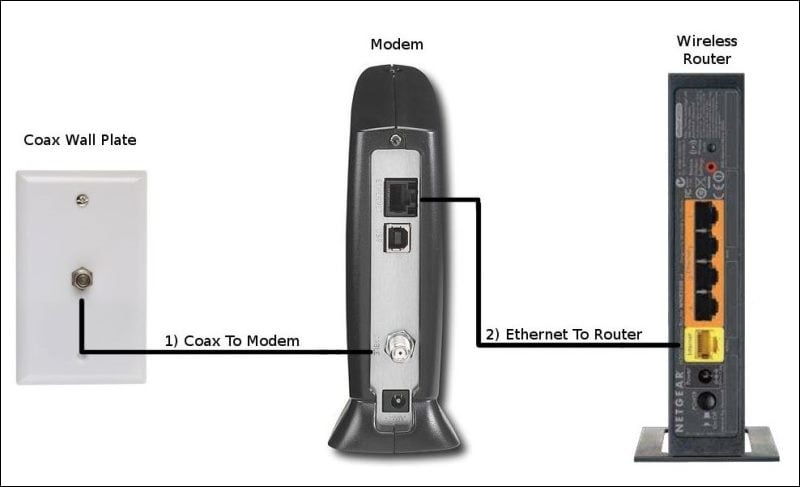
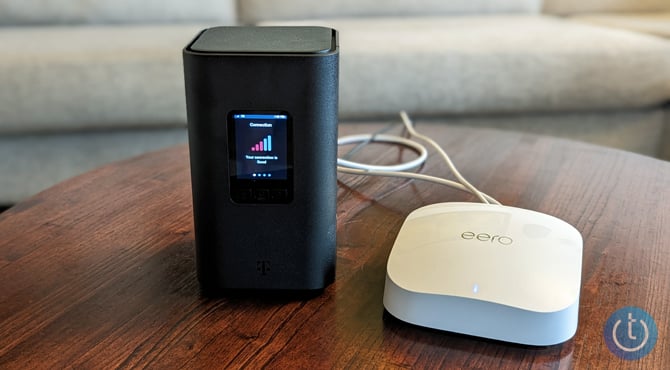
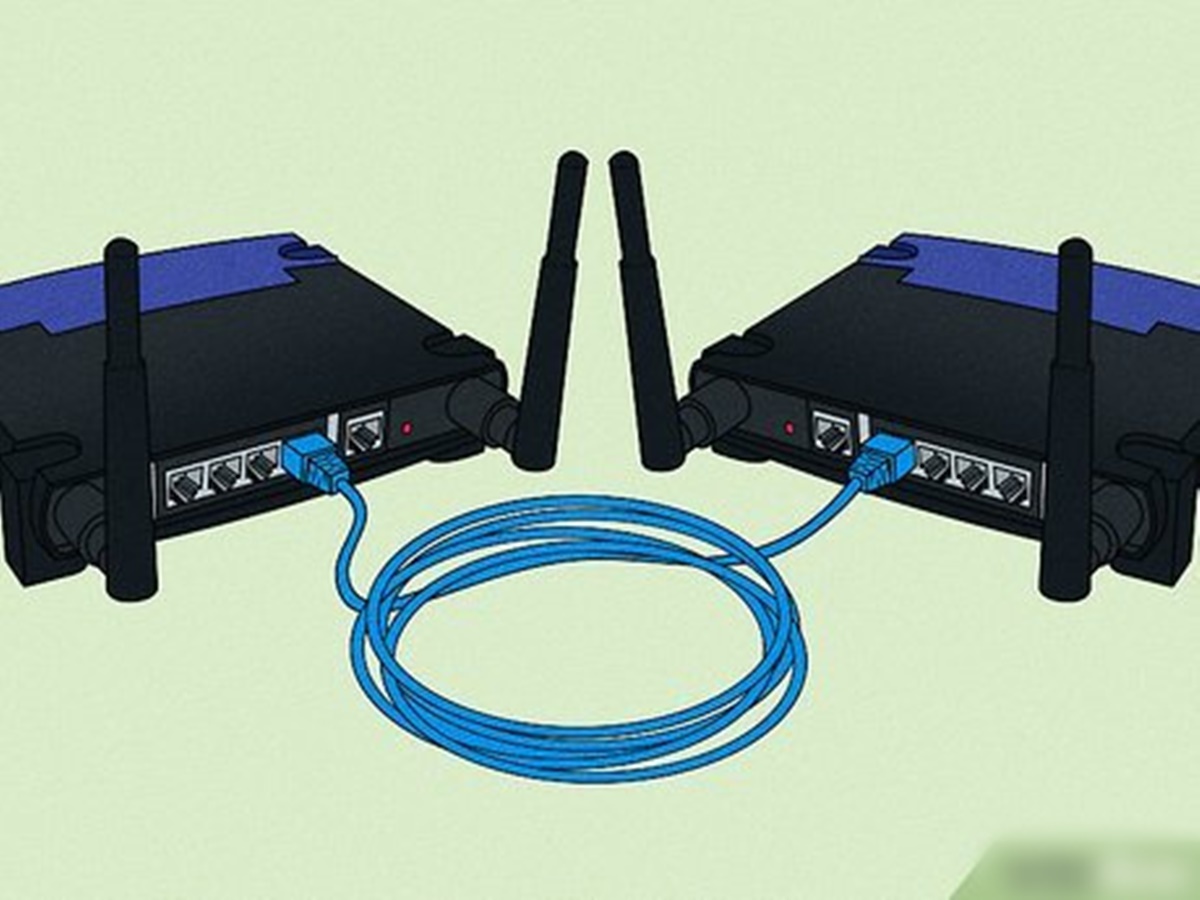
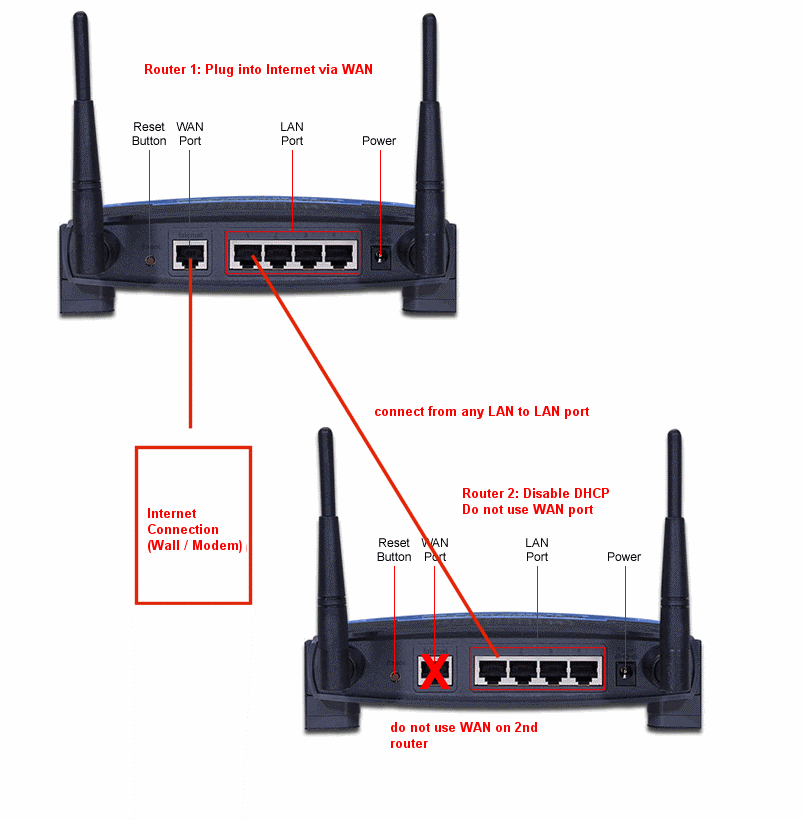
- Connect your router to the modem: Use an Ethernet cable to connect your router to your modem. This willestablish a wired connection between the two devices.
- Power on your router: Plug in your router and turn it on. Wait for the lights to stabilize and the router to boot up.
- Access the router's web interface: Open a web browser and type the router's IP address (usually http://192.168.1.1 or http://192.168.0.1). Log in using the default username and password, usually found on the router's sticker.
- Change the default password: Once logged in, change the default password to a strong and unique one to enhance your network's security.
- Set up your Wi-Fi network: Configure your Wi-Fi network settings, including the network name (SSID), password, and encryption type (WPA2 or WPA3).
- Configure Quality of Service (QoS): Set up QoS settings to prioritize important network traffic, such as video conferencing or online gaming.
- Save and apply changes: Save your changes and apply them to your router. This may require restarting the router, so be prepared for a brief outage.