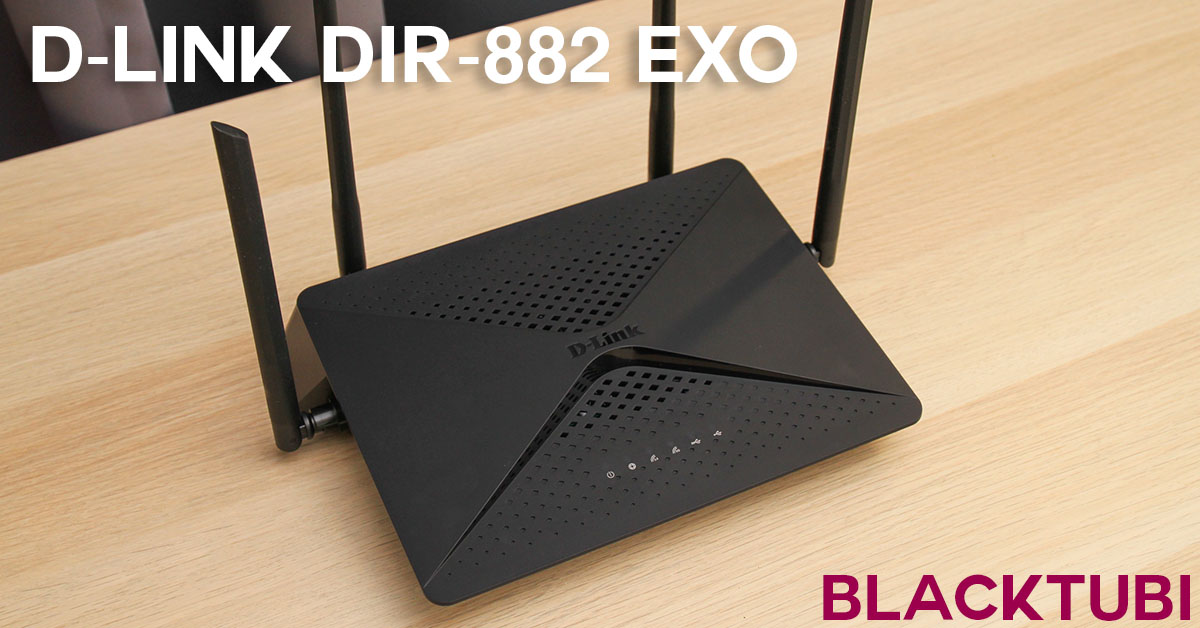
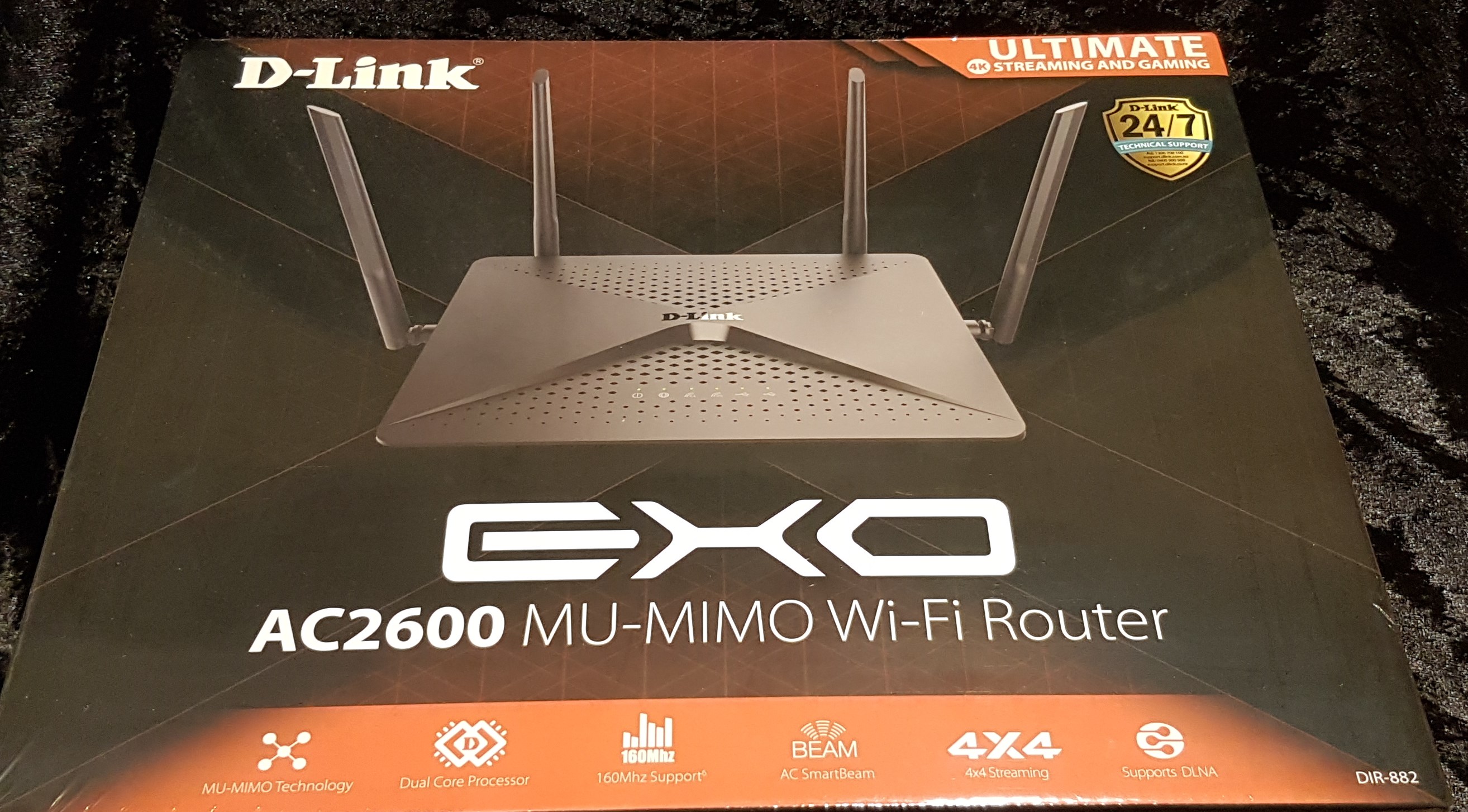
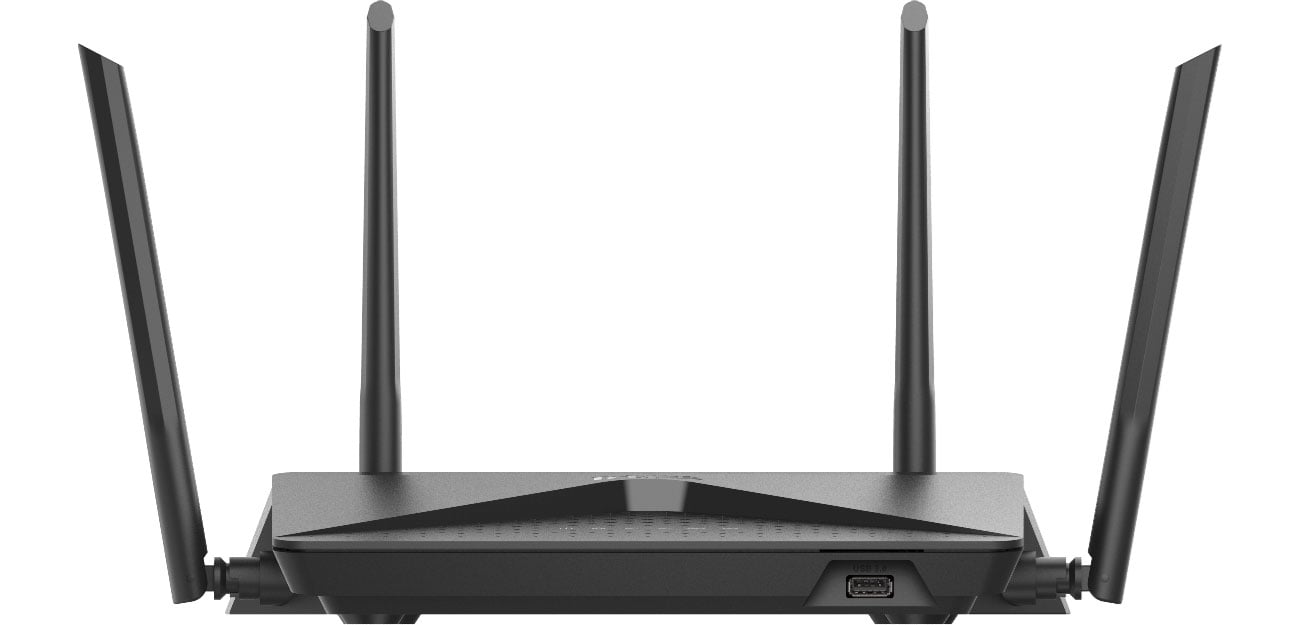
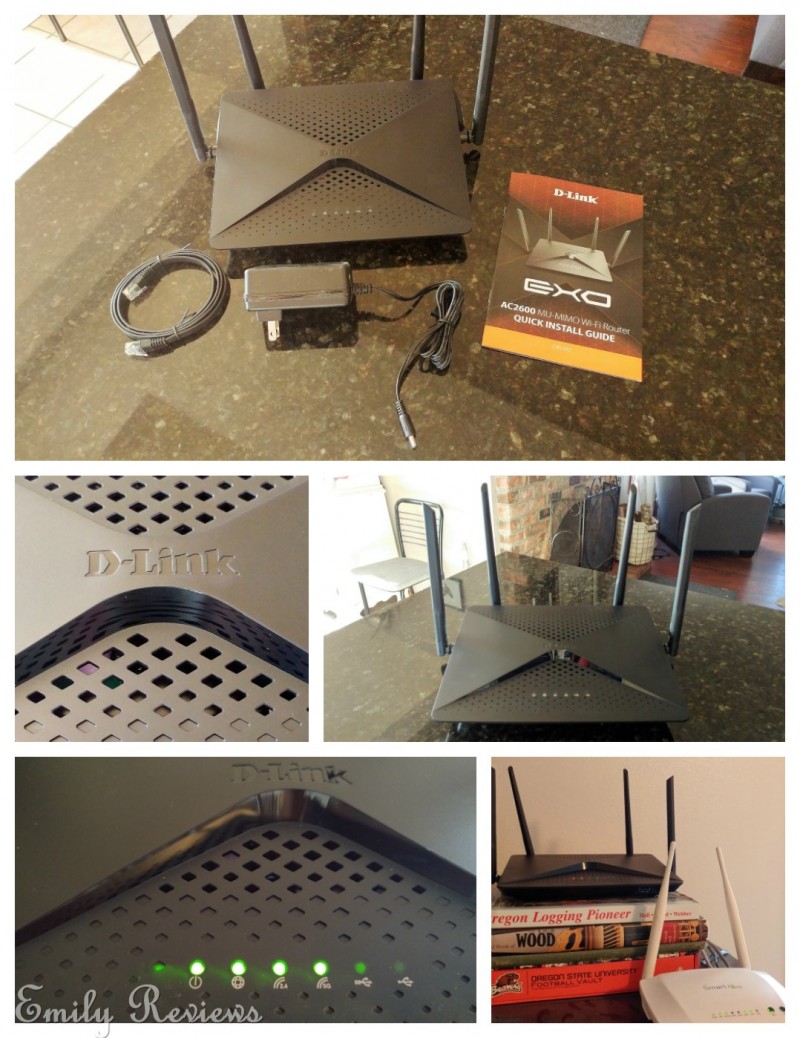
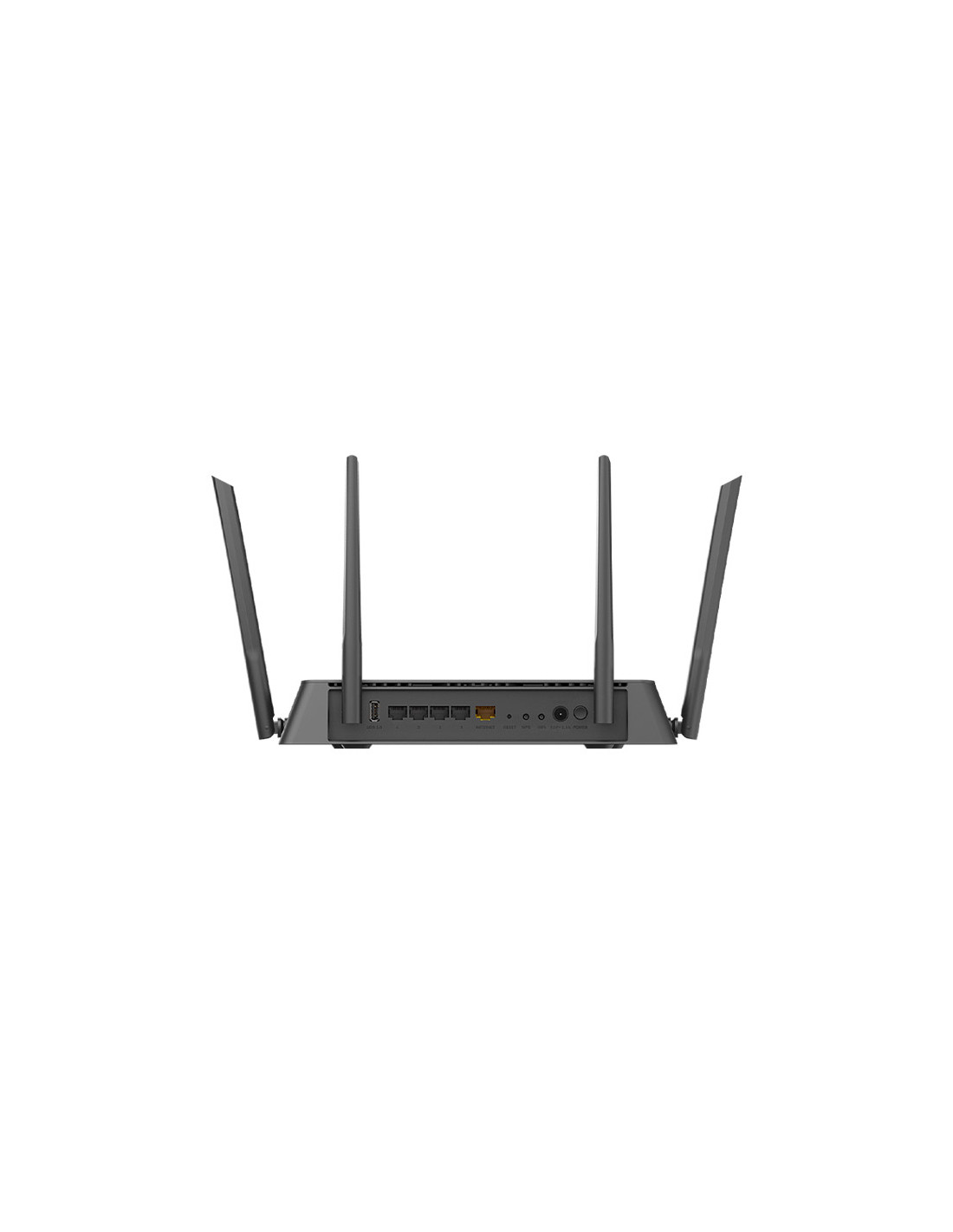
D-Link DIR-882 Firmware Update Guide
TO ENSURE YOUR PRODUCT HAS THE LATEST SECURITY UPDATES AND OPERATES AT OPTIMAL PERFORMANCE, IT IS RECOMMENDED YOU UPDATE YOUR PRODUCT TO THE LATEST FIRMWARE AFTER INSTALLATION AND TO PERIODICALLY CHECK FOR NEW FIRMWARE RELEASES. UPDATES CAN BE FOUND BY SEARCHING YOUR MODEL NAME AT HTTPS://SUPPORT.DLINK.COM OR THOUGH THE MYDLINK MOBILE APPLICATIONS FOR MYDLINK REGISTERED DEVICES.
Understanding the Importance of Firmware Updates
Firmware updates are crucial for maintaining your router's optimal performance and ensuring it has the latest security patches. Regular firmware updates can also improve the stability and reliability of your router, reducing the risk of connectivity issues and other problems.
Preparation for Firmware Update
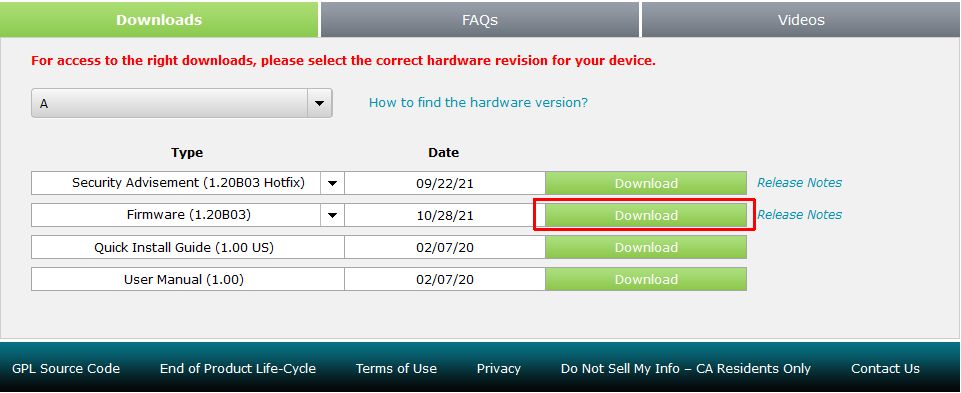
Before proceeding with the firmware update, make sure you have a stable internet connection and a computer with a web browser. You will also need to download the latest firmware files from the D-Link Support Website.
Step-by-Step Firmware Update Process
- Download the latest firmware files from the D-Link Support Website for your DIR-882 router model.
- Power off your router and unplug the power cord.
- Connect your computer to the router using an Ethernet cable.
- Power on the router and plug in the power cord.
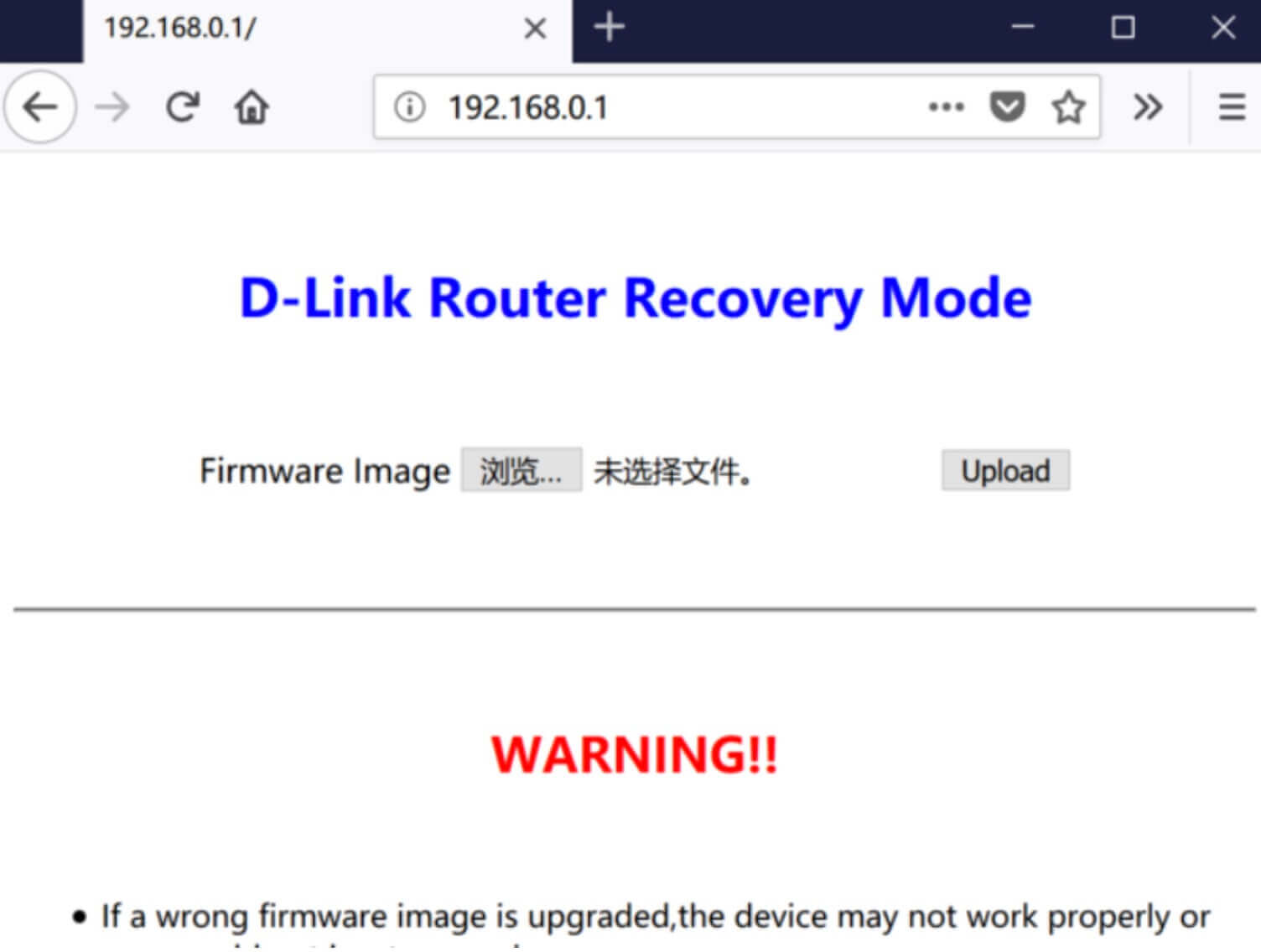
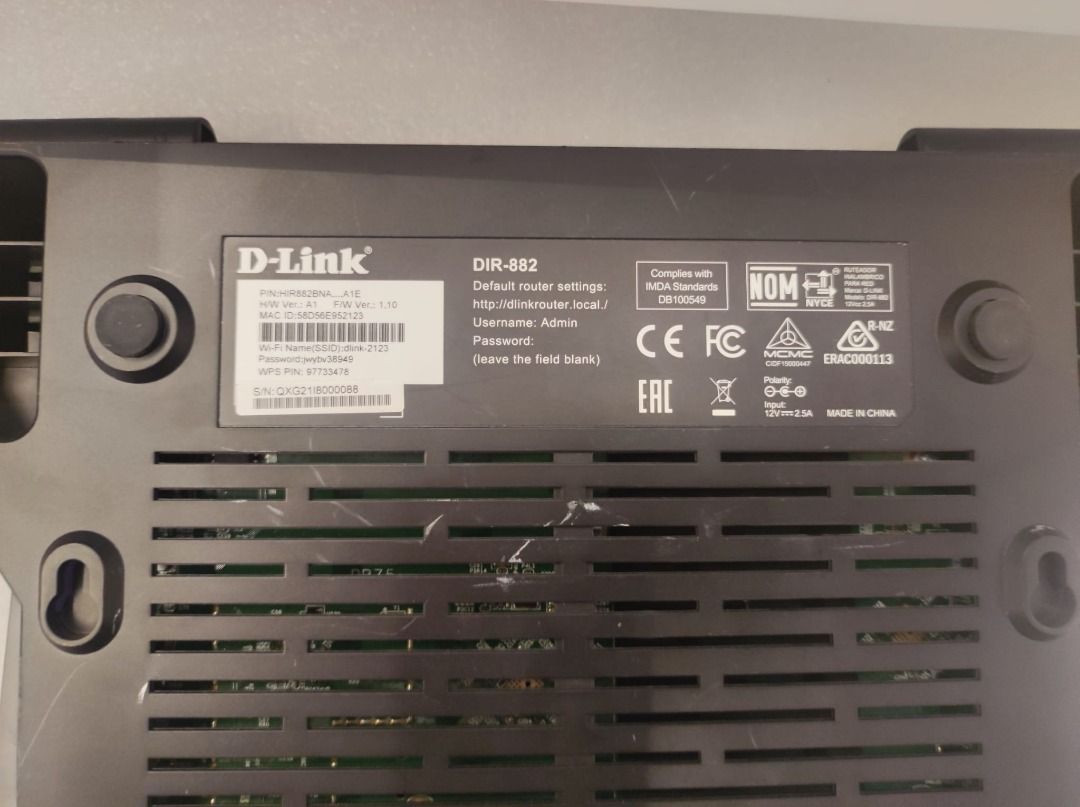
- Open a web browser on your computer and type the IP address of the router (usually 192.168.0.1).
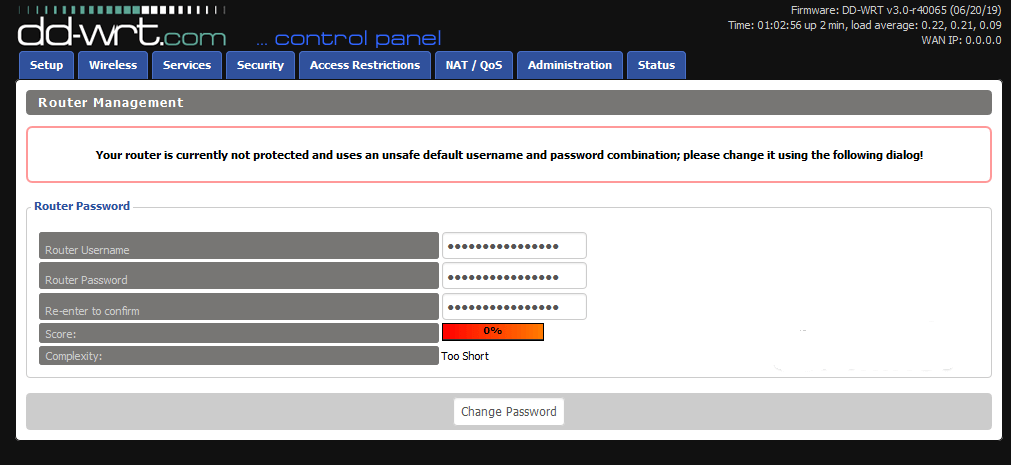
- Enter your router's username and password (leave the password field blank).
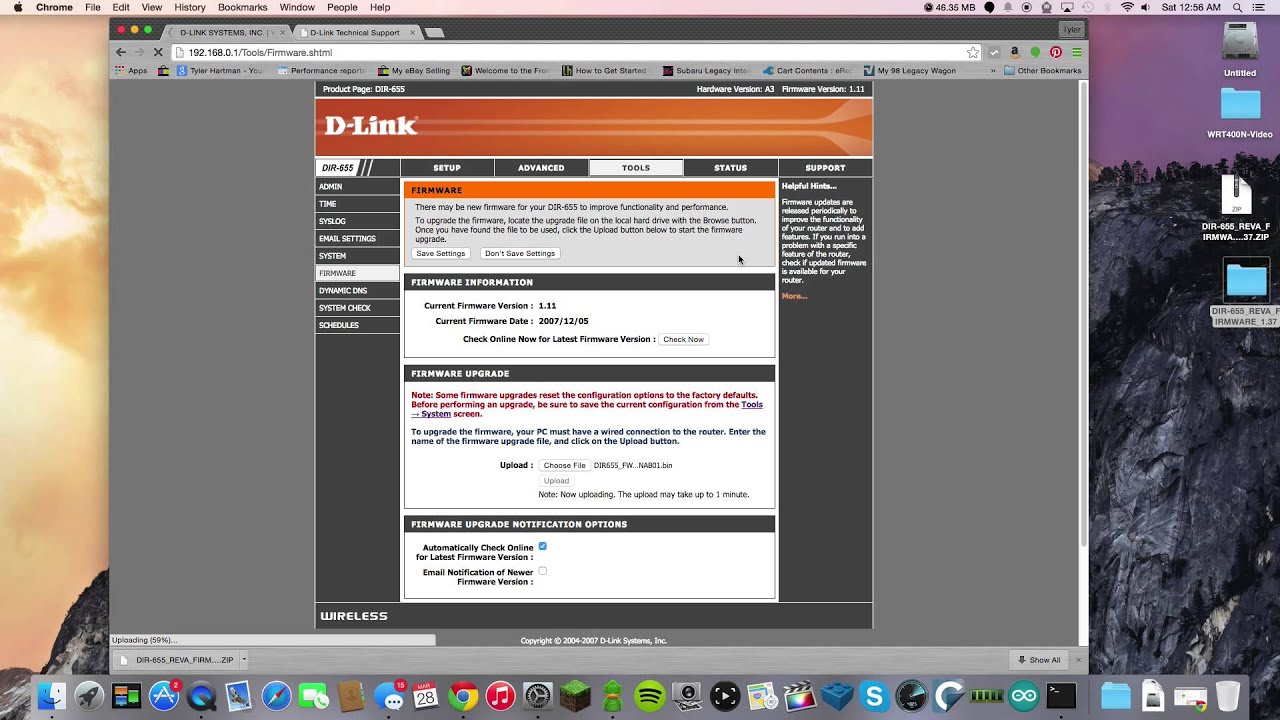
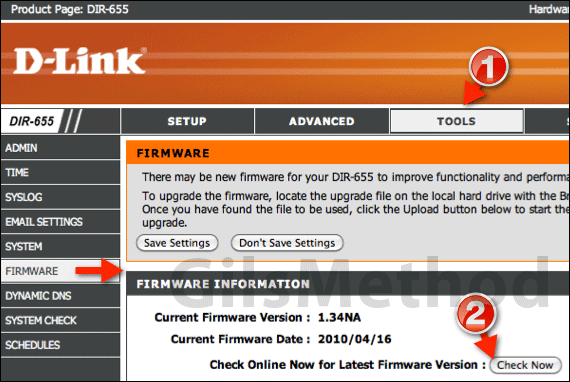
- Click the "Management" tab and select "Firmware Update" from the drop-down menu.
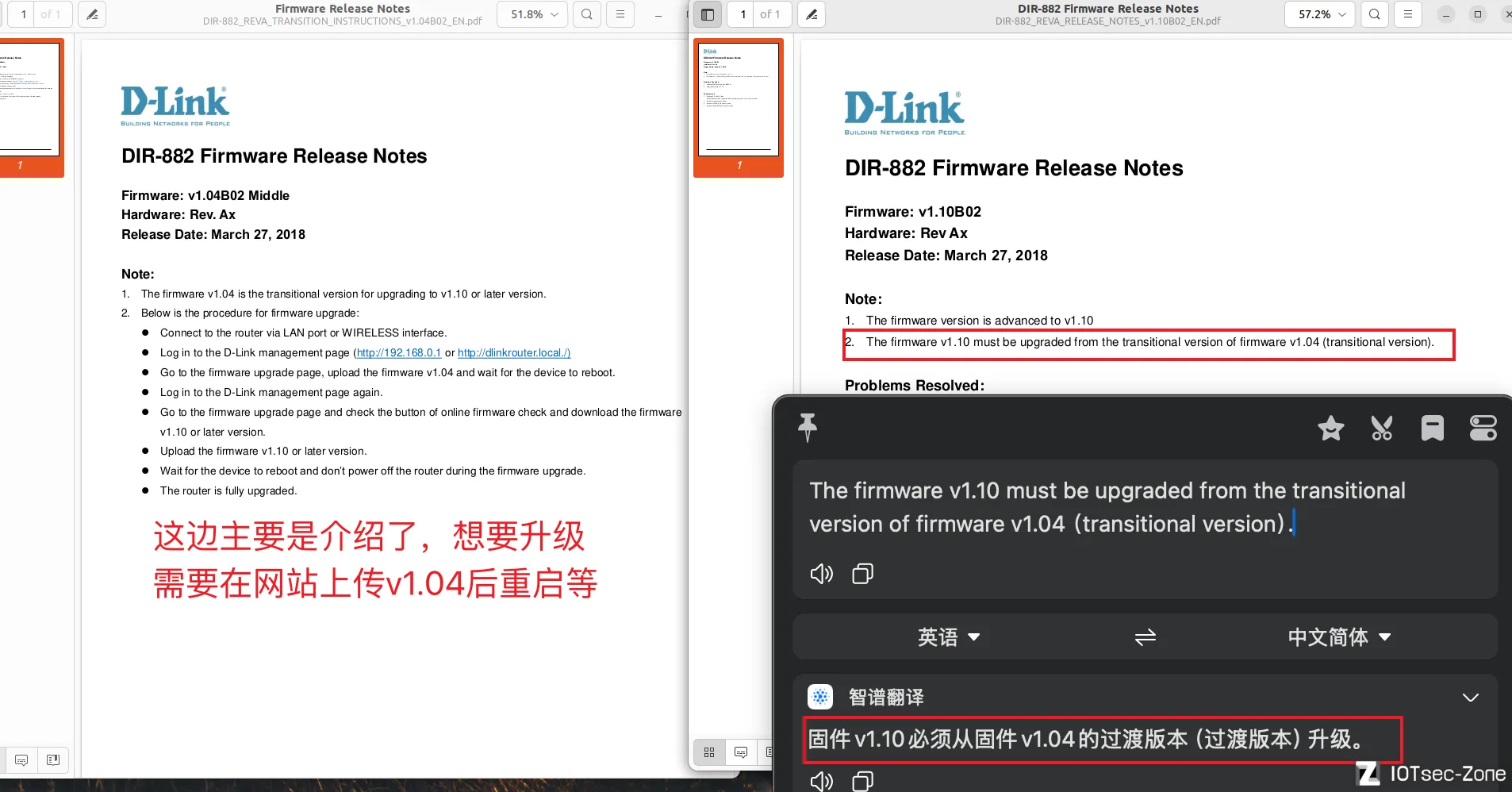
- Click the "Check For New Firmware" button to check for any available updates.
- If an update is available, follow the prompts to download and install the new firmware.
- Do not turn off your router during the firmware update process.
- Once the firmware update is complete, verify the new firmware version and refresh the page to view your device.