G Wi-Fi Network Rescan: A Comprehensive Guide
Are you tired of dealing with unreliable Wi-Fi connections or struggling to find available networks in your area? Well, you're in luck! In this article, we'll walk you through the process of performing a G Wi-Fi network rescan on your Windows 11 device. This handy tool is a game-changer for anyone who relies on Wi-Fi for work, entertainment, or communication.
Why is a Wi-Fi Network Rescan Necessary?
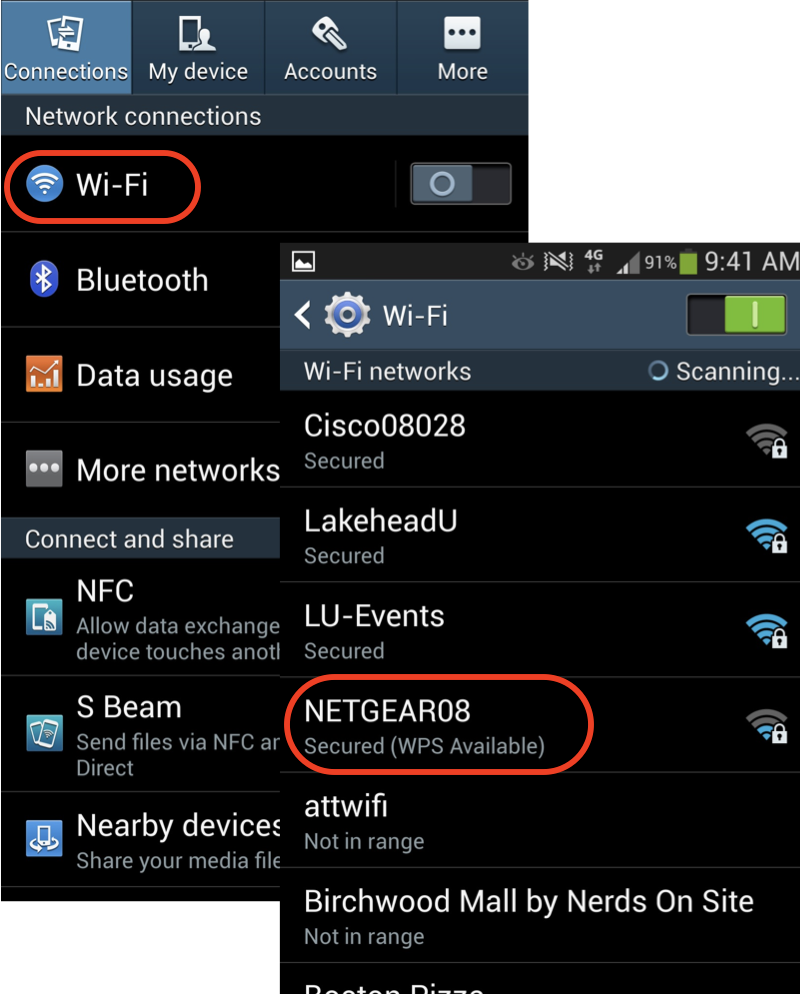
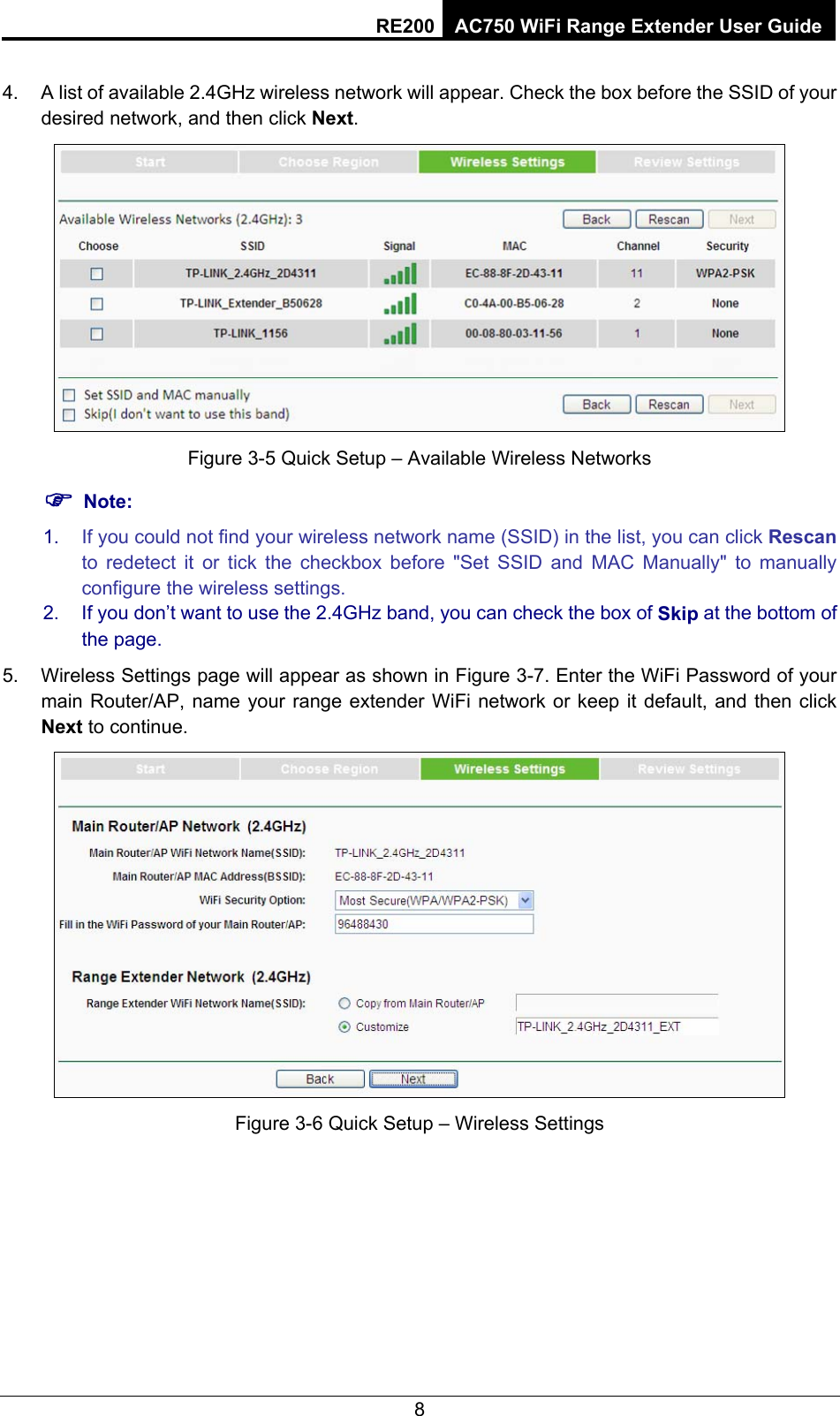
A Wi-Fi network rescan is essential when your device is unable to find all available networks in your area. This can happen due to various reasons such as network interference, misplaced or misplaced network identifiers (SSID), or changes in your network configuration. By rescaning your Wi-Fi network, you can refresh the list of available networks and increase your chances of finding a stable connection.
Method 1: Quick Settings Menu

To perform a Wi-Fi network rescan using the Quick Settings menu, follow these steps:
- Click on the Wi-Fi, volume, and battery icons present on the right side of the taskbar to open the Quick Settings flyout.
- Click on the right arrow (>) icon next to the Wi-Fi button to see the available networks.